
|
Summary
|
|
The Network Observability Deployment Engine (NODE) removes the complexity of managing enterprise monitoring environments. NODE achieves this by decoupling cluster infrastructure from application lifecycle management. This hands-on guide walks through the process of deploying both NODE CaaS and NODE LCM. Find out how to use automated Ansible playbooks and the tcxctl utility for reliable, air-gapped rollouts. Key Takeaways
|
Having spent significant time working with the Network Observability Deployment Engine (NODE), I can confidently say that modernizing network observability does not have to feel like black magic. NODE simplifies how we deploy, scale, and manage complex network observability environments. Whether you're working with Kubernetes for the first time or streamlining an enterprise monitoring stack, NODE brings structure and clarity to the setup process.
At its core, NODE relies on two main building blocks:
-
NODE CaaS (Container-as-a-Service). NODE CaaS is the underlying Kubernetes platform. It comes out of the box with an integrated OCI container image registry, storage provisioner, and load balancer. On day one, NODE CaaS equips you with a robust, production-ready cluster infrastructure.
-
NODE LCM and product lifecycle management. NODE LCM is an operator-driven abstraction layer built on top of Kubernetes. It offers a clean, predictable way to package, deploy, and manage Network Observability by Broadcom capabilities and shared services.
To run NODE, you'll need a dedicated deployment host to run the installation. This requires a Linux machine running Docker that sits outside of the target cluster. Its main job is to execute setup commands over the network. Once installation finishes, it can be safely powered down or terminated.
Pro tips:
-
Always rely on TechDocs: When performing installations, be sure to check out the official NODE Technical Documentation for comprehensive guidelines.
-
Check legacy versions: When installing older NODE releases, always consult the specific legacy documentation referenced in the release notes.
-
Troubleshooting: If you encounter errors or unexpected behavior during rollout, review the troubleshooting section in the documentation, as most common resolution steps are detailed there.
-
Upgrades: Upgrade procedures follow a similar flow to the installation process, so this guide can also be used as a reference when performing upgrades. However, always be sure to consult the specific upgrade commands in the official documentation.
NODE CaaS installation
Before executing any commands, let’s review the high-level cluster architecture and installation flow. The installation process uses a deployment host running Ansible playbooks inside a dedicated container. These playbooks target your cluster VMs to provision Kubernetes (control-plane and worker nodes) and all required NODE CaaS services. The number of control-plane nodes can be one (non-HA) or three (HA). The worker nodes host platform services and applications, with node counts determined by your sizing and application resilience requirements.
The NODE CaaS installation process consists of four main steps:
-
Prerequisites: Set up the infrastructure, cluster VMs, and deployment host. Install the OS. Download and extract the installation bundle onto the deployment host.
-
Preparations: Launch the deployment container, configure environment settings, run preflights, and prepare the cluster VMs.
-
Deployment: Deploy the NODE CaaS components.
-
Verification: Confirm that the installation completed successfully.
Step 1: Prerequisites
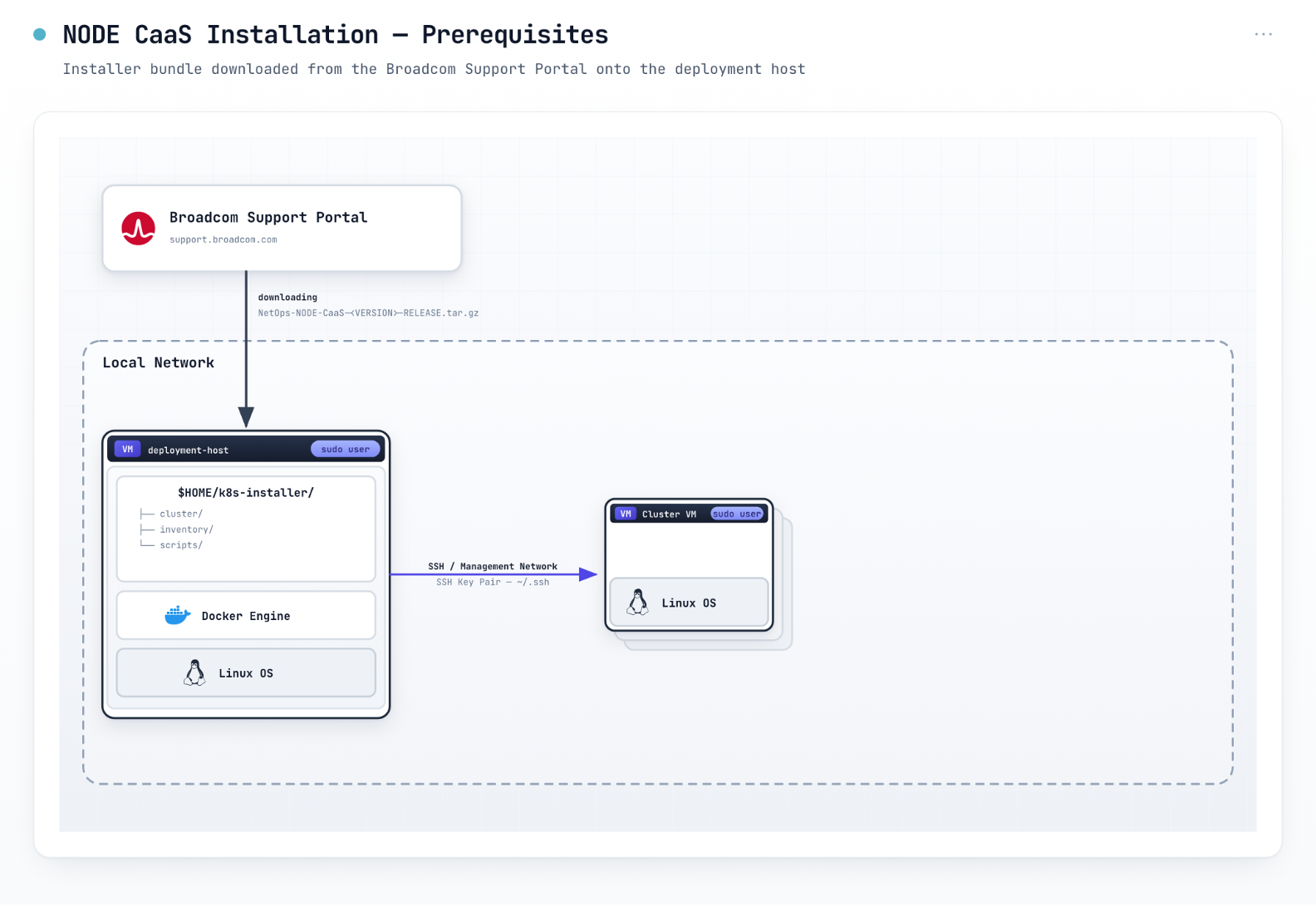
Once your deployment host and cluster VMs are ready, you can complete the initial prerequisites step by downloading the NODE CaaS installer bundle and extracting it in the $HOME directory.
Download and extract the installer bundle on the deployment host (available on the Broadcom Support Portal):
cd $HOME
tar -xzvf NetOps-NODE-CaaS-${VERSION}-RELEASE.tar.gz
Pro tip: Verify the bundle checksum before proceeding. Refer to the documentation for verification instructions.
Step 2: Preparations
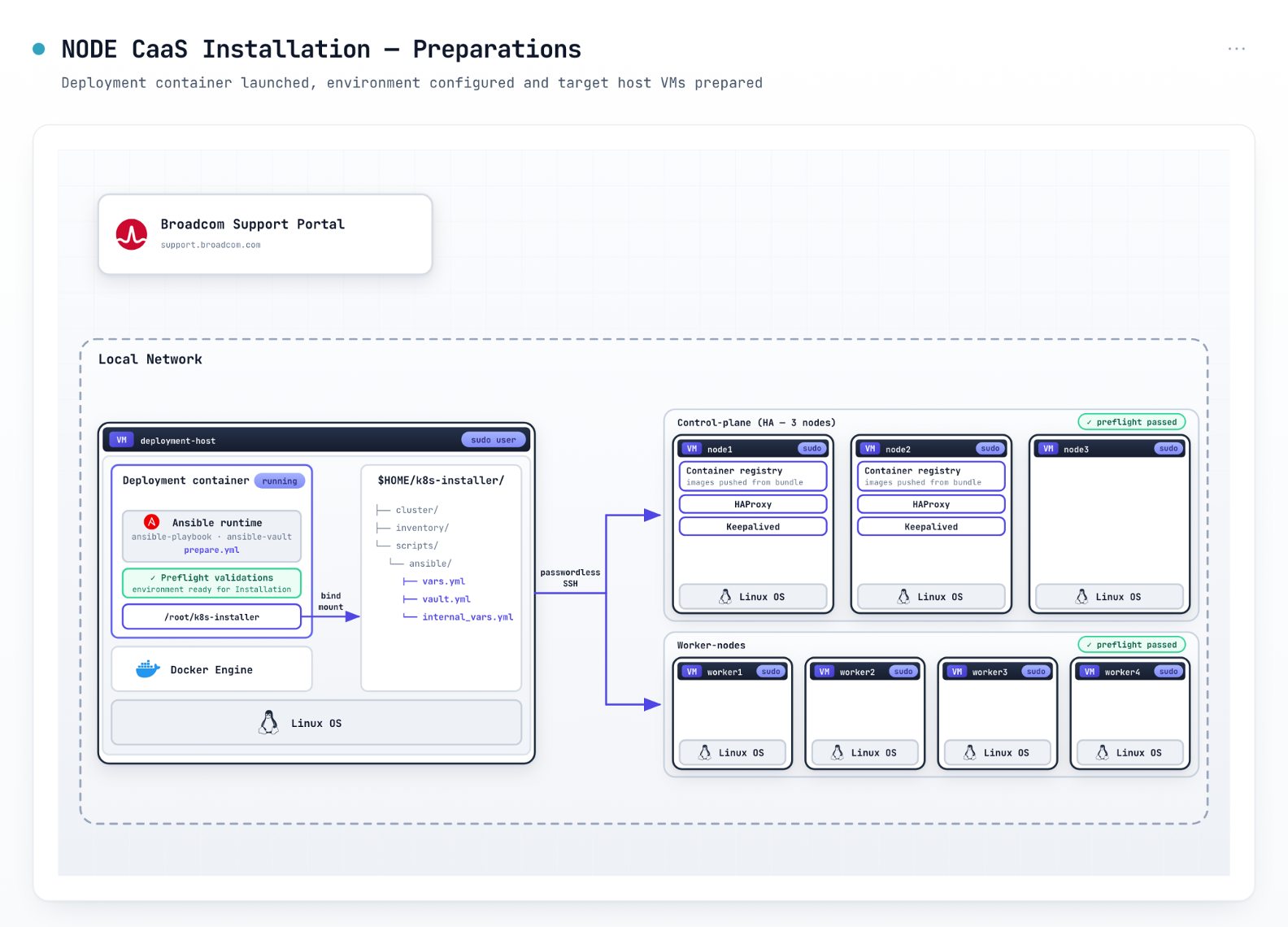
To prepare the environment for provisioning Kubernetes, launch the deployment container by executing the run-container.sh script. This script loads the deployment container image, starts a container instance, and drops you directly into an interactive session within it.
./k8s-installer/scripts/run-container.sh
Pro tip: If the session closes or the deployment container exits, just re-run the command above to resume and pick up where you left off.
Notice how your terminal prompt shifts. You can now change directory (cd) back to the main installer directory. All subsequent installation steps must be executed inside the deployment container.
root [ ~ ]# cd $HOME/k8s-installer/
Configure the environment and store the container image registry credentials in a secured vault file. Edit vars.yml with your cluster configurations and network settings. You can find vars.yml in $HOME/k8s-installer/scripts/ansible/vars.yml. Then, store the container image registry passwords encrypted in vault.yml using Ansible Vault:
ansible-vault create scripts/ansible/vault.yml
Pro tip: Working with YAML files for the first time? Here are a few best practices to follow:
-
YAML strictly requires spaces for formatting. Don’t use tabs.
-
Elements sharing the same hierarchy level must use the identical number of spaces.
-
Always insert a space after colons and hyphens.
-
Utilize comments: Any text following a # character is ignored during execution.
Prepare target host VMs
Now, run the prepare playbook, which will verify that the environment is ready. The playbook will also configure passwordless SSH access on all cluster VMs, set up the container image registry, and execute other tasks necessary for a successful deployment.
cd $HOME/k8s-installer/
ansible-playbook scripts/ansible/prepare.yml -e @scripts/ansible/vars.yml --become -e @scripts/ansible/vault.yml --ask-vault-pass
Pro tip: These Ansible playbooks are idempotent. This means if execution fails or is interrupted, you can resolve the issue and re-run the playbook safely, without having an impact on existing configurations.
Verify that the prepare playbook finishes cleanly with zero errors before initiating the deployment step.
Step 3: Deployment
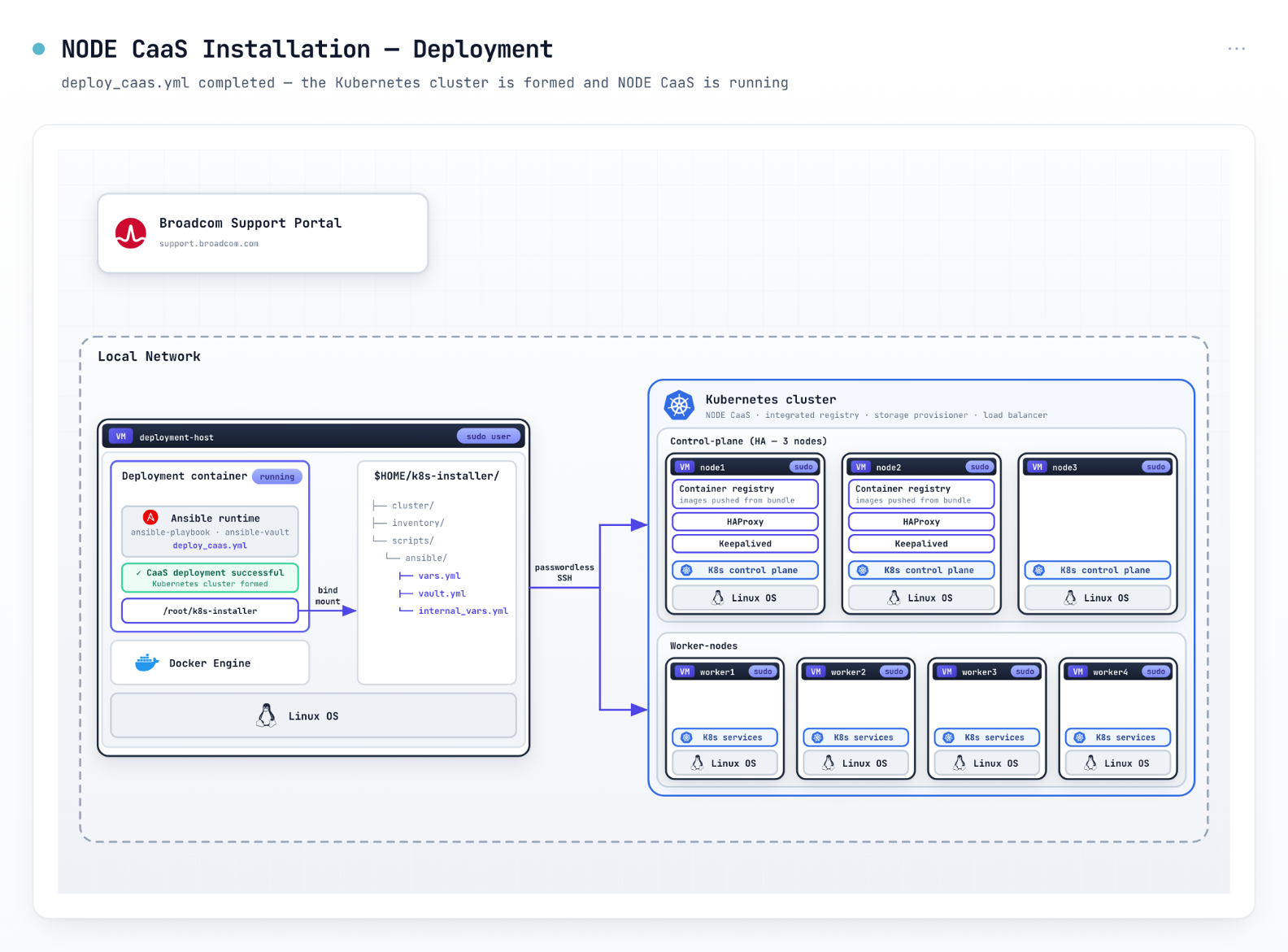
To deploy the NODE CaaS cluster, run the deploy_caas.yml playbook:
ansible-playbook \
-i inventory/${cluster_name}/hosts.yml \
scripts/ansible/deploy_caas.yml \
-u ${ansible_user} \
--become \
-e @scripts/ansible/internal_vars.yml \
-e @scripts/ansible/vars.yml \
-e @scripts/ansible/vault.yml --ask-vault-pass
Be sure to replace ${cluster_name} and ${ansible_user} with the values configured in vars.yml.
Step 4: Verification
Once execution completes, verify that the console output displays "CaaS deployment is successful." That's your cue to exhale.
Pro tip: The kubectl CLI utility is included in the NODE CaaS bundle and available inside the deployment container. To configure kubectl directly on the deployment host, consult the documentation.
NODE LCM and product deployment
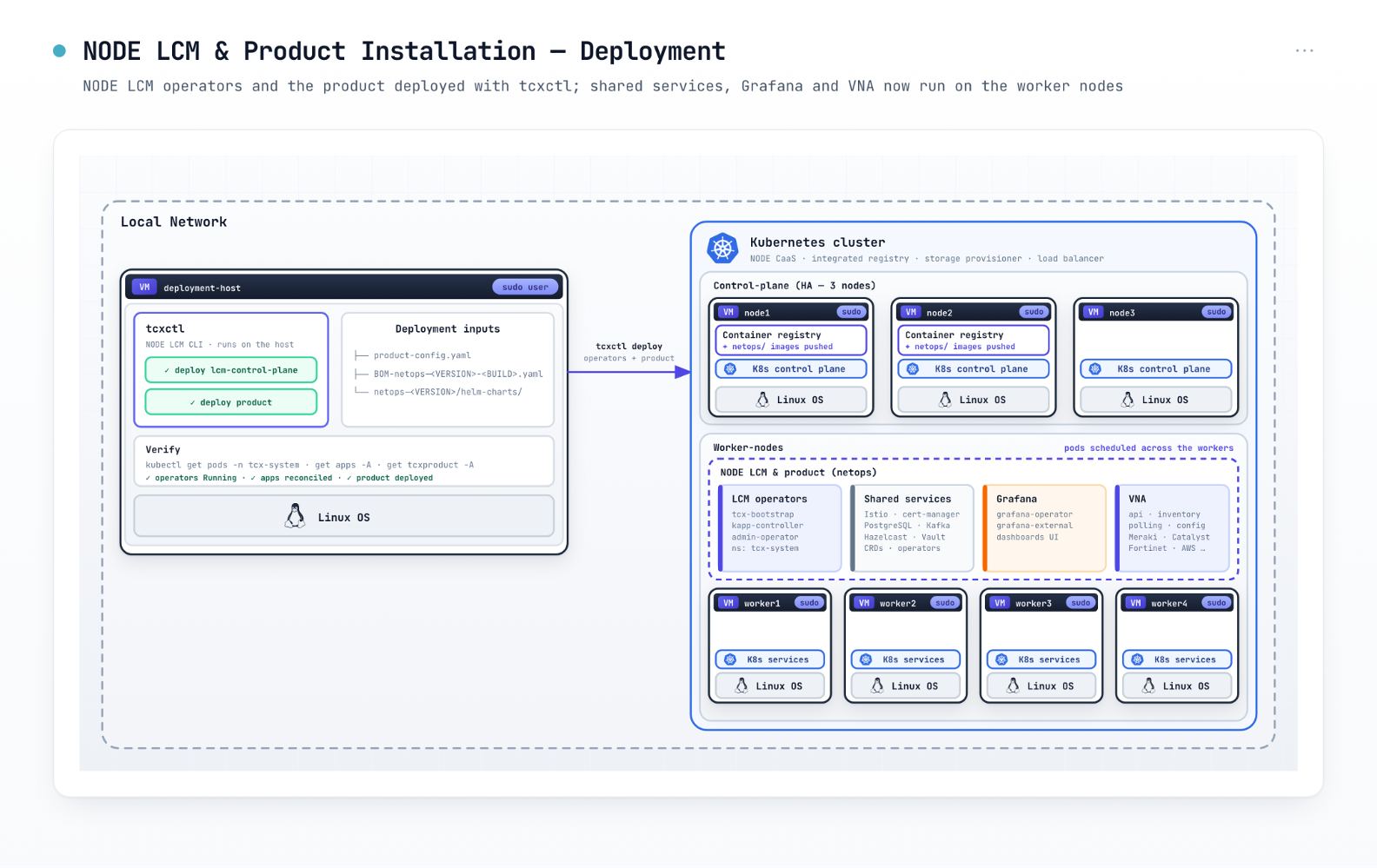
With NODE CaaS running, NODE LCM takes over product lifecycles using tcxctl and a bill of materials (BOM) file to manage container images and orchestrate deployments.
High-level installation flow
The NODE LCM and product installation follows a four-step sequence:
-
Prerequisites: Verify that the Kubernetes cluster is ready, download and extract the software bundle, and prepare the deployment host.
-
Preparations: Log in to OCI registries, copy and push the software artifacts, set up environment configurations, and run preflight validations.
-
Deployment: Deploy the NODE LCM operators and the product.
-
Verification: Confirm that the deployment succeeded and all services are up and running.
A few operational notes worth remembering:
-
The installation procedure remains identical across applications (also known as product capabilities like UFC or custom dashboards). The specific capability being deployed is governed entirely by your configuration files.
-
Deployment and preflight steps are idempotent and can be safely re-run. Additionally, your current configuration will determine which capabilities will be installed or removed.
Step 1: Prerequisites
Download and extract the NODE LCM bundle on the deployment host to wrap up your prerequisites. This package includes the tcxctl tool and the BOM file. Unlike the CaaS setup, you will run these commands directly on the deployment host rather than inside the deployment container. Simply type 'exit' to leave the container session before proceeding.
Download and extract the NODE LCM bundle (available on the Broadcom Support Portal) on the deployment host under the $HOME directory:
cd $HOME
tar -xzvf NetOps-NODE-LCM-${VERSION}-RELEASE.tar.gz
Pro tip: Verify the bundle checksum before proceeding. Refer to the documentation for verification instructions.
Step 2: Preparations
Log in to the container image registries
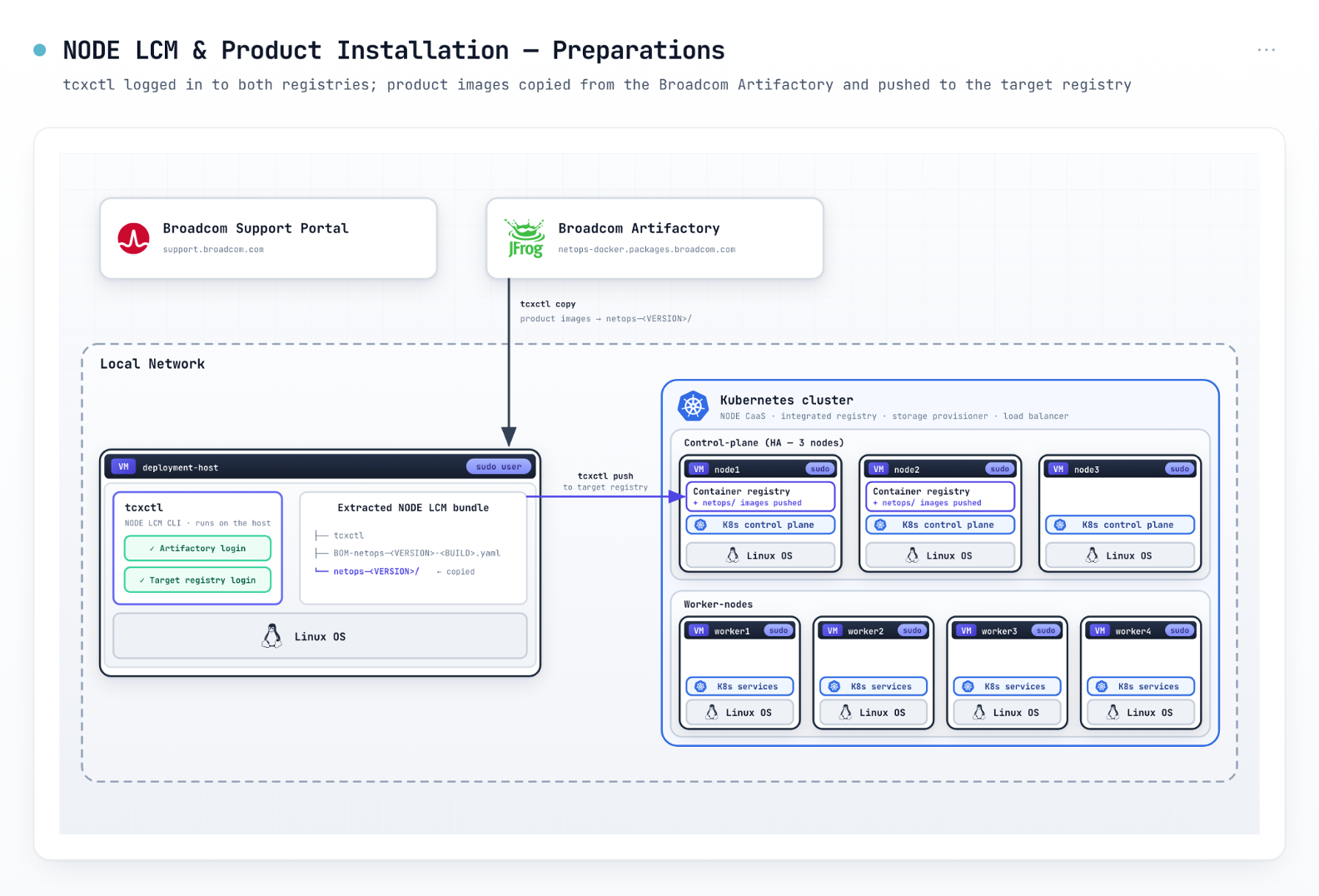
The installation workflow involves two container image registries: the Broadcom Artifactory (which hosts the Network Observability by Broadcom software) and your local container image registry (the one you just installed with NODE CaaS). This step authenticates to both registries so that you'll be able to copy the artifacts from the Broadcom Artifactory and push them to the target registry. You can find Broadcom Artifactory credentials in the Support Portal. Your target registry credentials were defined during NODE CaaS installation and are stored in the vault.yml file.
./tcxctl registry-login --registry netops-docker.packages.broadcom.com
./tcxctl registry-login --registry ${TARGET_REGISTRY_IP}:${PORT}
Pro tip: Broadcom Artifactory tokens expire quickly (in a matter of days). Make sure you have a fresh token before starting the installation.
Next, transfer the software artifacts into the target registry
This workflow moves the required container images from Broadcom Artifactory onto the deployment host, then pushes them over to the target registry. For air-gapped environments, this two-phase sequence makes disconnected rollouts effortless: Fetch the package while online, then shift the deployment host over to your isolated network to populate the target registry.
./tcxctl copy --bom-file ./BOM-netops-${VERSION}-${BUILD}.yaml
./tcxctl push --registry ${TARGET_REGISTRY_IP}:${PORT}/netops
Pro tip: These operations take time, as a significant volume of data is moved between repositories.
It’s time to configure the environment and choose the Network Observability by Broadcom applications to deploy. Here are the steps:
Customize configuration
Update product-config.yaml with target registry URLs, cluster footprint sizing, gateway FQDNs/certificates, and the product capabilities you plan to install (such as UCF or custom dashboards). Refer to official documentation for the full list of configuration options. An example configuration file can be found here: helm-charts/netops/examples/product-config.yaml
Set the Kubernetes cluster context and run preflights
Run preflight validations to ensure your cluster environment is properly configured and prepared before initiating the rollout.
export KUBECONFIG=~/.kube/<cluster_name>
./tcxctl validate preflight --name netops --bom-file ./BOM-netops-${VERSION}-${BUILD}.yaml
Pro tip: Preflights execute quickly and can be safely re-run. Ensure preflights pass cleanly before proceeding, and do not continue if any errors are reported.
Step 3: Deployment
Deploy the NODE LCM operators:
./tcxctl deploy lcm-control-plane --bom-file ./BOM-netops-${VERSION}-${BUILD}.yaml --path ./helm-charts/netops/
Check that the NODE LCM operators were deployed successfully by running the following:
kubectl get pods -n tcx-system
Deploy the product capabilities:
./tcxctl deploy product --name netops
Verify that the application rollout finished successfully, run the following:
kubectl get apps -A
kubectl get tcxproduct -A
That's it! NODE CaaS, NODE LCM, and the Network Observability by Broadcom applications are up and running successfully.
The verdict
Setting up enterprise Kubernetes platforms can often feel daunting, but breaking the rollout into distinct NODE CaaS and NODE LCM stages makes the entire process predictable and repeatable. You now have a robust, production-ready NODE environment. I hope this guide helps smooth out your deployment workflow.
Tag(s):
DX NetOps
,
AppNeta
,
Network Monitoring
,
Network Observability
,
Network Management
,
Network Operations

Idan Green
Idan Green is a technology product manager specializing in cloud technologies, automation, and orchestration. With over two decades of experience evolving alongside the telecommunications industry, Idan brings deep technical roots to his role at Broadcom, where he drives network observability platform solutions for...
Other resources you might be interested in

Demystifying NODE
Use this step-by-step guide to master the installation of Network Observability Deployment Engine (NODE). Simplify network observability rollouts.

AAI v26.0 - Linux Standalone Upgrade
Learn how to upgrade a standalone AAI installation on Linux from version 24.4.x to 26.0. Find out about updated configuration and log structures.
Automic Automation v26 Standard Administration – Agents
This course covers two agent administration topics in Automic Automation version 26 (Standard): Centralized Agent Upgrade (CAU) and Agent authentication.
Automic Automation V26 Standard Administration - General Topics
This course provides Automic Automation v26 administrators with a direct, technical breakdown of core system configuration and maintenance tasks.
Automic Automation V26 Standard Administration - Advanced Processes
This course covers the Automation Engine (AE) server processes in Automic Automation version 26 (Standard).
Automic Automation V26 Standard Administration - Functional Security
This course covers the administration of functional security in Automic Automation version 26.
Rally Office Hours: October 22, 2026
Find out about the GA of multi-column sorting. Learn more about tracking physical resources, cycle time widgets, and work rules for sprint additions.
Automic Automation: Transition to SAP RISE with Confidence
Automic Automation safeguards Clean Core architecture, mitigates SAP RISE migration risks, and unifies enterprise scheduling from mainframe to cloud.
AutoSys Workload Automation: Transition to SAP RISE with Confidence
AutoSys safeguards Clean Core architecture, mitigates SAP RISE migration risks, and unifies enterprise workload scheduling from mainframe to cloud systems.