
|
Summary
|
|
This post reveals how you can transform raw network alerts into actionable operational intelligence. Find out how you can stream AppNeta notifications directly into Google Chat, and have these alerts enriched with Gemini-powered root cause analysis and triage steps. Key Takeaways
|
Network alerts only matter if someone acts on them quickly. This post shows how to deliver AppNeta alarms straight into Google Chat, and use Gemini to enrich each alert with a probable root cause and recommended next steps. Network operations center (NOC) teams get the context they need in the tool they already use, with no servers to manage and minimal AI cost.
Key benefits of the approach:
-
Faster mean time to resolution (MTTR): Every alert features a root cause and next steps. (See figure 1 below for an example of a Google Chat notification with an AI-generated summary, root cause, and recommended steps.)
-
One thread per incident: Alerts and their clear updates stay together in the same thread.
-
Nothing to manage: Employ a fully serverless approach on Cloud Run.
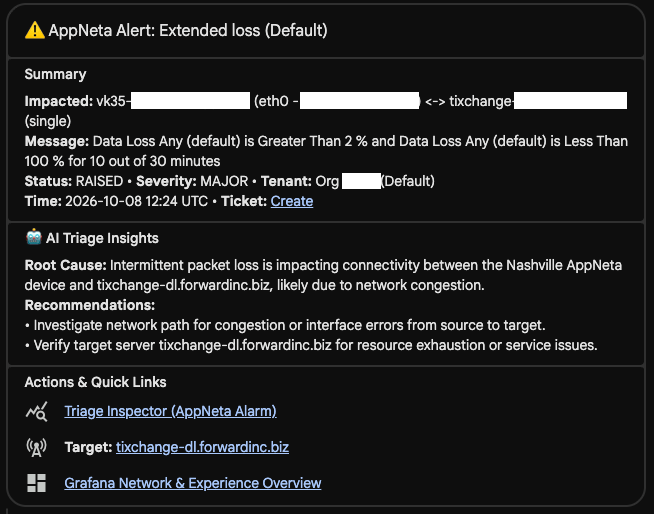
Figure 1: Google Chat notification with AI-generated summary.
Architecture and how it works
-
AppNeta sends each alarm to a Cloud Run function, with a shared secret in the header.
-
The function checks the secret and sends only non-sensitive alarm fields to Gemini.
-
Gemini returns a probable root cause and two next steps.
-
The function posts a card to Google Chat, in the same thread as earlier updates for that alarm.
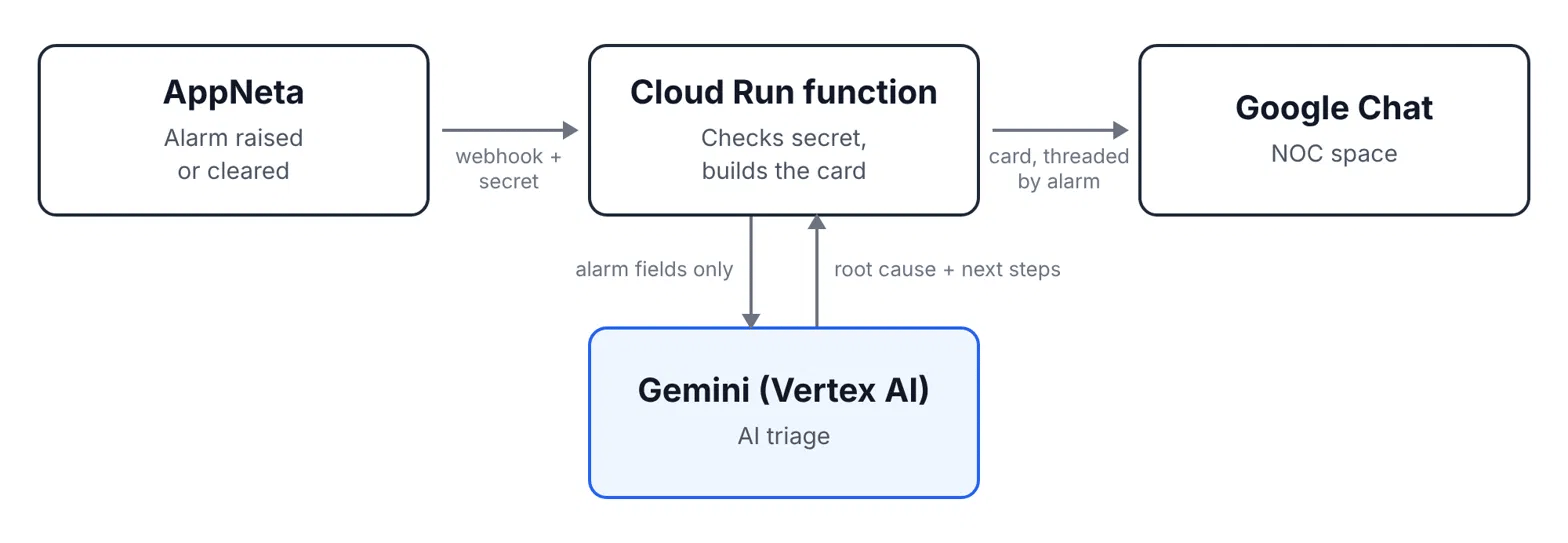
Figure 2: A high-level diagram of the integration architecture.
Step 1: Create a Google Chat webhook URL
First, set up an incoming webhook in your team's designated Google Chat space:
-
Open Google Chat and navigate to your NOC / Alerts Space or create a new one.
-
Click the Space name at the top and select Apps & Integrations. (See figure 3 below for a screen shot of the configuration interface in Google Chat.)
-
Click Add Webhooks.
-
Enter a name (e.g., AppNeta Real Time Alert) and click Save.
-
Copy the generated Webhook URL. You will configure this as an environment variable in Cloud Run.
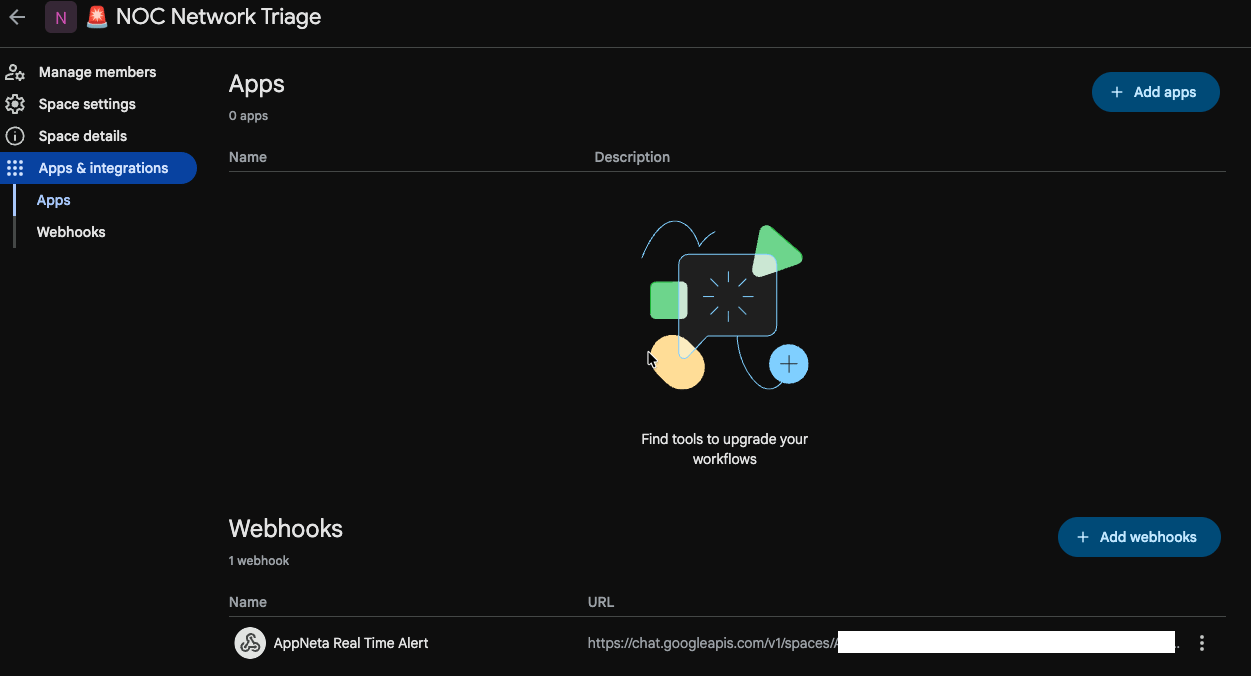
Figure 3: Google Chat Channel webhook configuration.
Step 2: Deploy the Cloud Run function middleware
The middleware parses the payload, calls Gemini, and formats the output into a Google Chat card.
The pseudo-code below outlines the function’s logic in five steps. For our pilot, we implemented it in Python on Cloud Run functions, but any supported runtime works. A production implementation should follow your organization’s coding and security standards.
on POST from AppNeta:
# 1. Receive: reject calls without the shared secret
if header "X-AppNeta-Token" != WEBHOOK_SECRET: return 401
alarm = request.json
# 2. Extract: keep only non-sensitive alarm fields
fields = { rule, alarmSeverity, state, itemName, target, description }
# 3. Call Gemini: only for new alarms
if alarm.state == "RAISED":
triage = gemini("Give a 1-sentence root cause and 2 next steps for: " + fields)
else:
triage = "Alarm cleared."
# 4. Re-format: build a Google Chat card, threaded by alarm ID
card = {
thread: { threadKey: alarm.alarmId },
sections: [ Summary(fields), AI Triage(triage), Quick Links ]
}
# 5. Send: post the card to the Chat webhook, replying in the existing thread
POST card to GCHAT_WEBHOOK_URL
+ "&messageReplyOption=REPLY_MESSAGE_FALLBACK_TO_NEW_THREAD"
When deploying, take these steps:
-
Store the chat webhook URL and the shared secret in Google Cloud Secret Manager, not in the code. Cloud Run passes them to the function at startup.
-
Grant the function’s service account two roles: Vertex AI User, to call Gemini, and Secret Manager Secret Accessor, to read the stored secrets.
-
Allow unauthenticated invocations of the endpoint. AppNeta can’t send Google IAM tokens, so the shared-secret header protects the endpoint.
Step 3: Configure the AppNeta alarm connector
In AppNeta, open the gear icon → Explore API (Swagger, /v4) and create an alarm connector pointing to the function URL, with your secret in the X-AppNeta-Token header. (See figure 4 below, which depicts the interface for configuring AppNeta API connectors.)
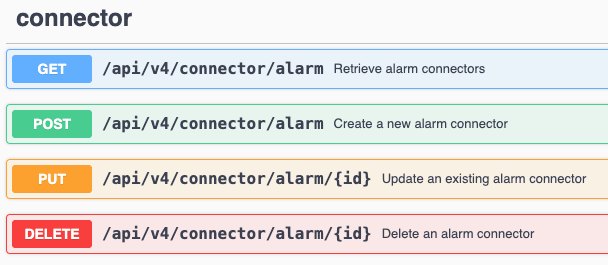
Figure 4: AppNeta API connector configuration.
Step 4: Testing and outcome
When an alarm triggers in AppNeta, Google Chat receives a formatted card within seconds. The card features these three key sections:
-
Summary: Impacted path, status (RAISED / CLEARED), severity, tenant, and timestamp, plus a link to your ITSM tool (ServiceNow in this example) to log an incident.
-
AI triage insights: Gemini's concise root cause diagnosis and two actionable troubleshooting recommendations.
-
Actions and quick links: One-click links to AppNeta Triage Inspector, target endpoint, and Grafana performance overview.
Note: Because the middleware attaches a threadKey matching alarmId, all follow-up status changes (such as clear alerts) automatically post inside the same Google Chat thread, keeping your channel clean and organized.
To test, send this curl call to the Cloud Run function URL:
curl -X POST "" -H "Content-Type: application/json" -H "X-AppNeta-Token: " \
-d '{"alarmId":"test-1","state":"RAISED","alarmSeverity":"CRITICAL","rule":"Test alarm","itemName":"test-path","target":"example.com"}'
Send it again with "state":"CLEARED": the second card should appear in the same thread. If a wrong token is used, the endpoint should return a 401 message.
What’s next
Today, the integration pushes insights to the NOC. Next, the NOC should be able to talk back: Teams should be able to work with a Gemini-powered Google Chat app that uses live AppNeta data to answer follow-up questions in the alarm thread, such as “Is this path still degraded?” From there, the same pattern can group related alarms into one incident and open ITSM tickets automatically.
AppNeta tells you something is wrong. Gemini adds why and what to check next. Google Chat puts it in front of the people who can fix it.
Disclaimer: The approach and pseudo-code in this post are a personal example shared for illustration purposes only. They are provided "as is," without warranty of any kind, and are not an official Broadcom product, are not supported, and will not necessarily be updated or maintained by Broadcom.
You are responsible for your implementation, configuration, security, testing, and use of third-party services. Before transmitting data to Google Cloud, Gemini, Google Chat, or any other third-party service, confirm that you are authorized to share it and that the disclosure complies with applicable law, contractual obligations, and your organization’s privacy, security, and AI-use policies. Review the applicable service terms and data-handling settings, including retention, use for model training, and processing locations. Do not transmit credentials or other secrets, or personal, confidential, or regulated information unless specifically authorized and appropriate safeguards are in place. Selecting the example fields does not by itself make the data non-sensitive.
AI-generated summaries and recommendations may be inaccurate or incomplete. Qualified personnel should independently validate outputs before relying on them or making operational changes. Third-party services are subject to their own terms, availability, and charges.

Nestor Falcon Gonzalez
Nestor holds a Master's Degree in Telecommunication Engineering and has over 20 years of experience in Telco, Network and Infrastructure Operations in different roles: SWAT, pre-sales and Solution Architect. He focuses on helping customers on their network transformation, driving innovation and providing value for...
Other resources you might be interested in

How to Send AppNeta Network Alerts to Google Chat with Gemini AI Summaries
Learn how to send AppNeta alerts to Google Chat and have them enriched with AI-powered root cause analysis and triage steps from Gemini.
Rally Office Hours: November 19, 2026
Get the latest product updates, including new help URLs, a new test case coverage widget, and pie chart widget enhancements. Find out about Rally events.
AutoSys Receives SAP Certification for SAP S/4HANA Cloud
AutoSys Workload Automation is now SAP-certified for SAP S/4HANA Cloud. See how you can unify orchestration across your modern SAP and cloud ecosystem.
Advancing Workload Automation Security with Frontier AI
Frontier AI has fundamentally changed the security landscape. Find out how Broadcom leverages frontier AI to harden its workload automation software.

DX NetOps: Network Observability Deployment Engine (NODE) Install
Learn how to establish the foundational architecture for the Network Observability Deployment Engine (NODE) by mastering the deployment of CaaS and LCM.
AppNeta: Manage Organizations and Users
Learn how to configure and manage core AppNeta organization settings, create child organizations, and provision user accounts.
Rally Office Hours: November 12, 2026
Watch a demonstration of the Rally MCP server running with Claude. See how an automated workflow can generate release notes from a Rally milestone.
Rally Office Hours: November 5, 2026
Explore the new time in state widget, including configuration options, supported artifacts, and upcoming features. Hear about upcoming Rally events.
Automic Automation V26 Administration Foundations
This course takes you from a baseline engine installation to a fully secured, intelligent, and production-ready automation landscape.